Document Stamping
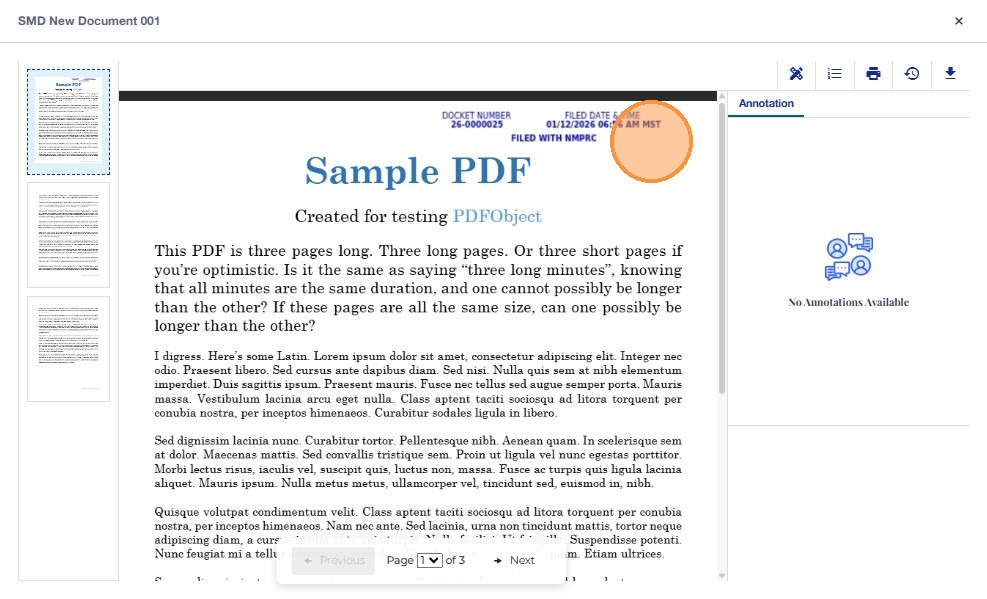
Document Stamping is an automated system feature that applies official docketing information to PDF documents that are designated as Public. The stamp ensures that public-facing documents display legally required metadata, including the docket number, approval date/time, and NMPRC Records Bureau label. Stamping is system-driven and occurs only during case acceptance or when authorized users file documents directly as Public.
Stamping is automatically triggered by actions performed by:
-
Records Staff / Records Supervisor
-
OGC
-
Hearing Examiners (HE)
-
Commissioners
These users do not manually stamp documents; the system stamps a PDF only when they take an action that sets the document status to Public.
Functionalities
-
Stamping occurs ONLY when the document’s status becomes Public.
-
Only PDF files are eligible for stamping.
-
The stamp is applied to the first page only.
-
The stamped version replaces the public-facing file; the original remains internally.
-
Internal documents are not stamped under any condition.
Accessing a Stamped Public Document
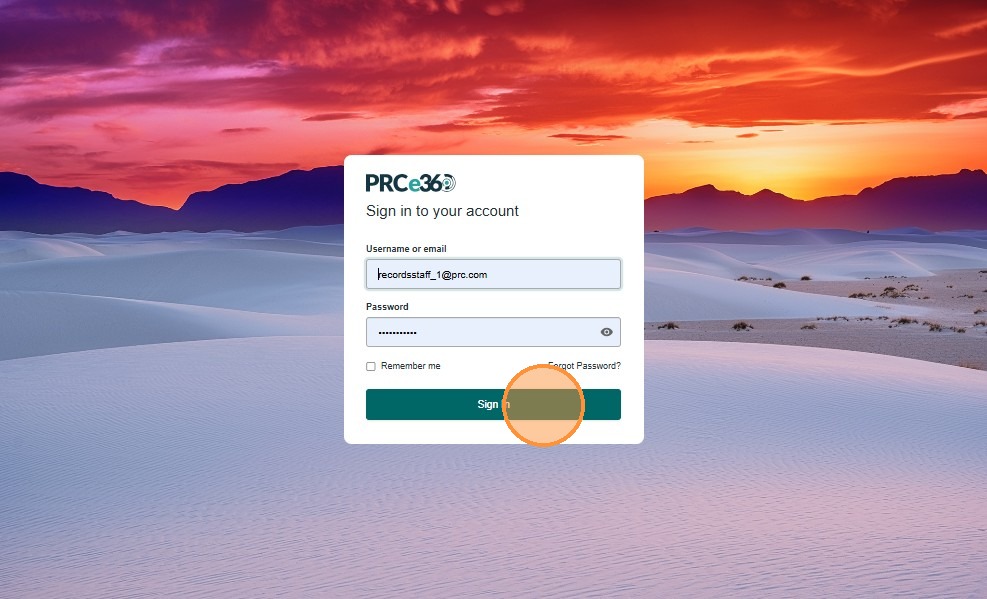
- From the login page, enter your username/email and password, then click Sign In.
-
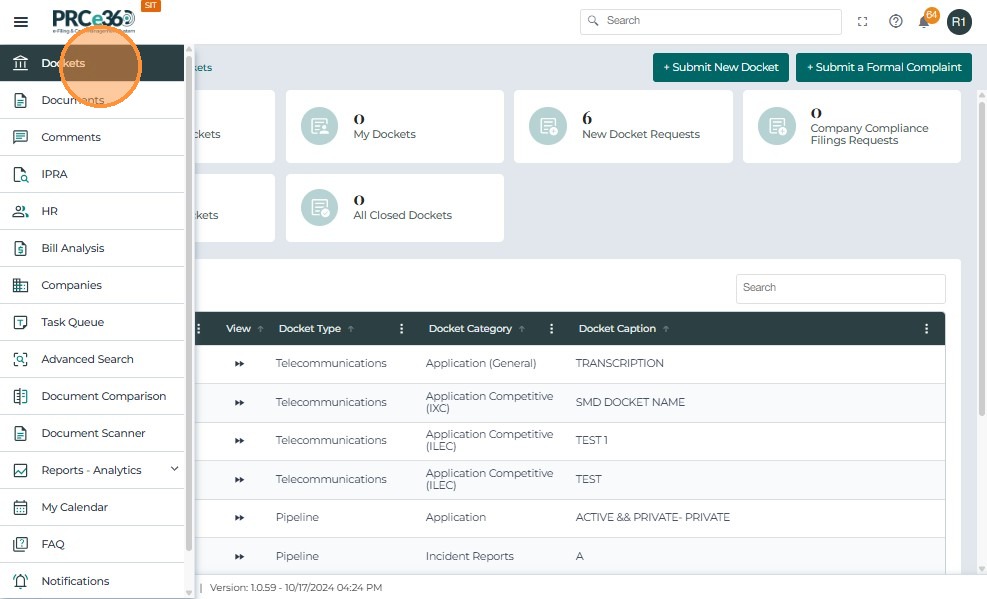
After logging in, open the left navigation menu and select Dockets.
-
This will display the list of all active dockets.
-
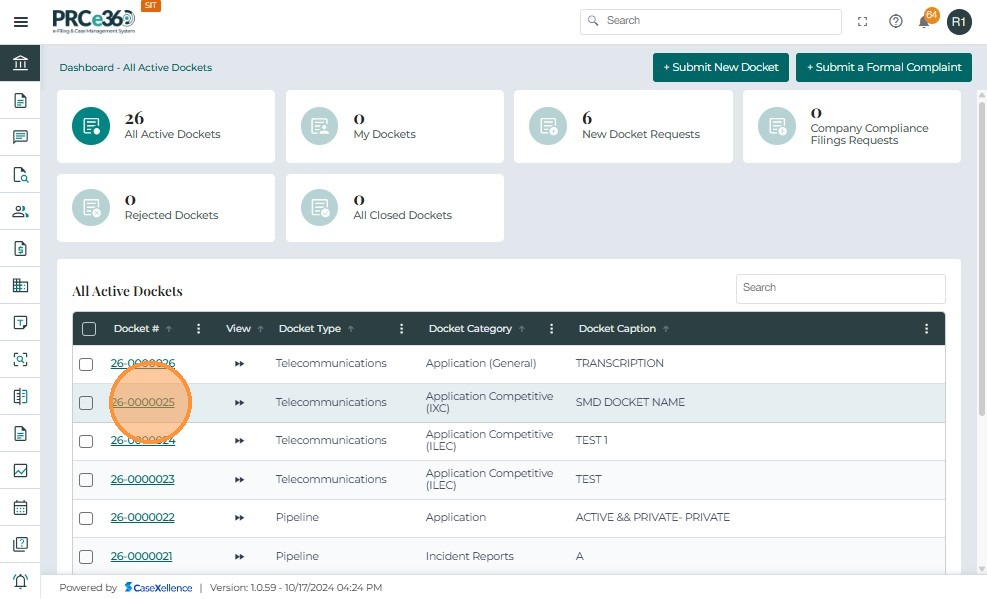
From the docket list, click the Docket Number you want to view
-
This opens the Docket 360 view for the selected case.
- Inside the docket, click on the Documents tab.
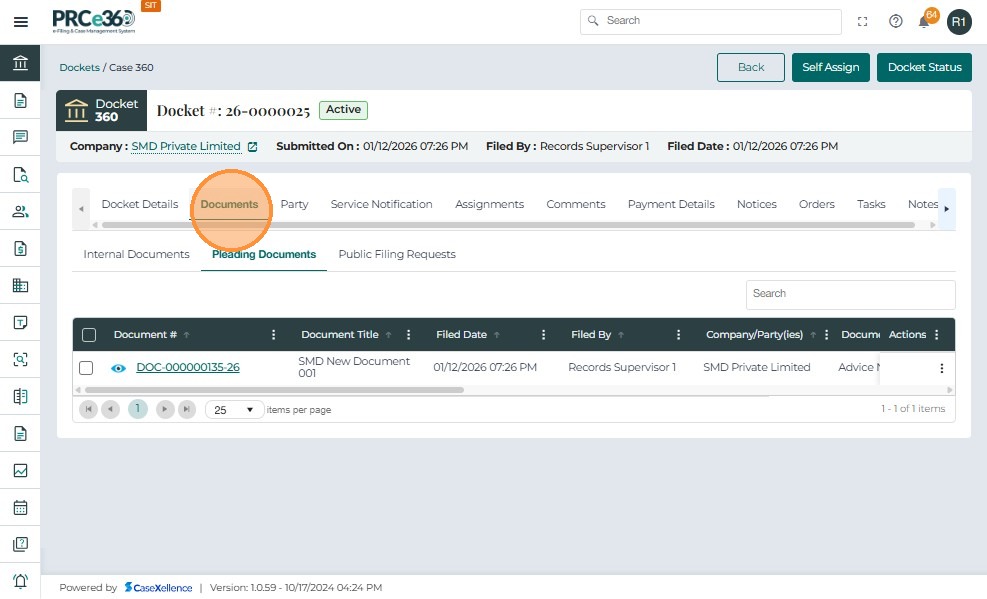
- Locate the required PDF under Pleading Documents (or the relevant document section) and click on the Document Number link to open it.
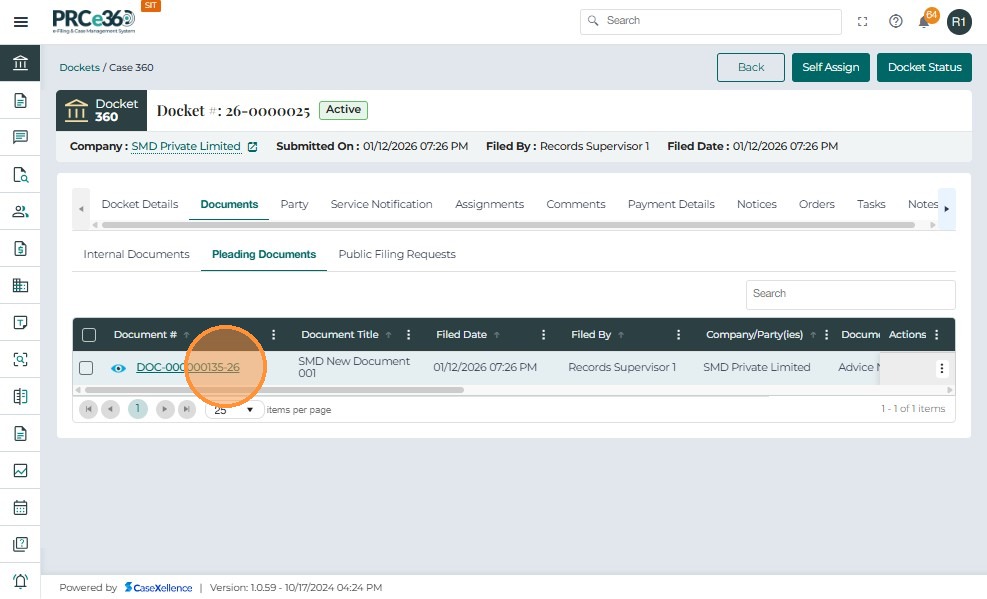
-
The document viewer opens and displays the public version of the PDF.
-
On the top-right corner of the first page, you will see the automatically applied stamp that includes:
-
Docket Number
-
Approval Date & Time
-
NMPRC Records Bureau
-
-
This confirms that the document was filed as Public and has been stamped by the system.